Record furniture measurements and carton quantities during a household or office survey, then review estimated cubic feet by room. The Mover Sheets moving company volume calculator is an Excel resource for organizing those measurements before an estimate or crew handoff.
The workbook calculates rectangular-envelope volume from external dimensions in inches. It flags unresolved entries and withholds the overall total until every entered record is Ready, but you still need to confirm that the survey includes all rooms and items.
Where this workbook helps
- Keep measured furniture and identical carton groups organized by room for survey review.
- Use calculated cubic feet instead of repeating dimensional arithmetic for each inventory line.
- Identify missing or invalid entries before relying on the overall volume estimate.
- Use room-level record counts to focus follow-up on unfinished parts of the entered inventory.
What is in the file
How to get started
1. Prepare a working copy
Save a separate copy for the survey. The ten populated Inventory records are fictional examples; replace or clear their inputs in columns A–F before using the file for a job. Leave the calculated columns G–I intact.
2. Set the room names and survey date
On Assumptions, review the eight room names in A2:A9. Keep each name unique and nonblank, and resolve any Room-list check warning. Enter the survey date in E2 using MM/DD/YYYY.
3. Enter measured inventory
On Inventory, choose a Room and enter an Item or carton description, Quantity, Length (inches), Width (inches), and Height (inches). Use a positive whole-number quantity and positive numeric dimensions. Group items on one line only when they are in the same room and have identical external dimensions.
4. Resolve exceptions and review the summary
Check Record status for each entered line, including pasted entries. Correct every Incomplete or Check input record, then open Volume Summary. Review Unresolved records, Room-volume scope, and Readiness before using Total estimated volume (cubic feet). Separately confirm that no inventory was omitted.
Measure the configuration that will actually move
Measure the external length, width, and height of the anticipated moving configuration. An assembled desk and a dismantled desk bundle can have very different envelopes. Decide which configuration applies before entering dimensions, and describe it clearly enough for the packing supervisor to understand the measurement.
The calculation treats each item as a rectangular envelope. It does not automatically allow for nesting, compression, packing material, or loading gaps. Do not enter an assembled piece and its separately packed components as if both will move; that would count the same inventory twice.
These cubic feet are not a truck-capacity calculation or a shipment-weight measurement. Use the result as a survey input, then make separate loading and weight decisions using appropriate job information.
Fictional example: calculate a group of identical cartons
Suppose a fictional office survey includes six identical cartons, each measuring 24 inches long, 18 inches wide, and 16 inches high. Select Office in Room, enter a carton description, set Quantity to 6, and enter those three dimensions as numbers.
To convert the measured envelope from cubic inches to cubic feet, the workbook calculates 24 × 18 × 16 ÷ 1,728 = 4 cubic feet per carton. It then multiplies by quantity: 6 × 4 = 24 cubic feet for the line. With valid inputs and a recognized room, Record status is Ready, and Estimated line volume (cubic feet) displays 24.000.
This is the volume of that entered carton group, not proof that the office survey is complete. Before relying on the room result, confirm the carton count and check whether any other cartons have different dimensions. Enter those different sizes on separate lines rather than applying this carton size to all of them.
Troubleshooting incomplete and invalid entries
Use Record status to decide what needs correction. Input validation helps during entry, but pasted values may bypass it, so review the calculated status even after a clean-looking paste.
- Incomplete: a room or description is missing, or one of Quantity and the three dimensions is not numeric. Fill the missing field or replace text such as “18 inches” with a numeric dimension in the inches column.
- Check input: quantity is zero, negative, or fractional; a dimension is zero or negative; or the room does not match the Assumptions list. Correct the count or measurement and select a recognized room.
- Blank status: all six input cells on that row are empty. The row is unused, not a completed zero-volume item.
A non-ready line has blank calculated volume cells. Those blanks mean the line is excluded pending correction, not that it occupies no space. If measurements are unavailable, obtain the missing information or another survey rather than entering zero just to finish the row.
The checks also cannot identify every plausible-looking mistake. A positive dimension entered in feet instead of inches can pass the numeric checks while understating volume. Compare the entered units with the survey measurements before accepting the result.
Read partial room totals without mistaking them for completion
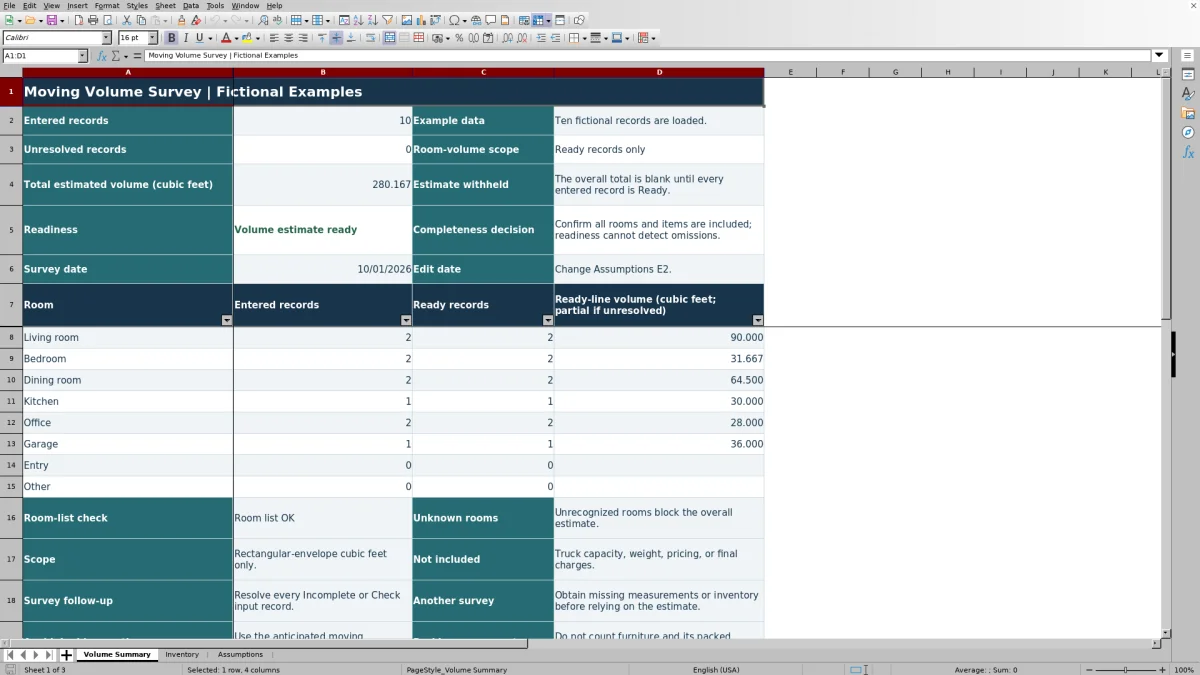
On Volume Summary, compare Entered records with Ready records for each room. These are inventory-line counts, not the number of individual pieces: one line can represent several identical items. Ready-line volume (cubic feet; partial if unresolved) includes only lines that pass the input checks.
When unresolved entries remain, Room-volume scope shows “PARTIAL: Ready records only,” and the overall total stays blank. A room with no Ready records also has a blank volume result. Do not treat a visible room subtotal as a completed estimate while unresolved records still need attention.
Ready does not mean complete. Readiness changes to “Volume estimate ready” when the entered records pass the checks, but the workbook cannot detect a closet, storage area, or item that was never entered. Walk through the survey scope separately before passing the result to the estimator or crew coordinator.
Maintain room names without losing the grouping
Set the room list before entering inventory where possible. Assumptions A2:A9 supplies both the Inventory room choices and the room labels on Volume Summary. You can adapt those labels to the job, but all eight must remain unique and nonblank.
If you rename a room after entering records, update the affected Inventory entries as well. Changing the list does not rename the text already recorded on those lines. An old name that is no longer recognized causes Check input, prevents that line from contributing volume, and blocks the overall estimate.
Resolve every Room-list check warning on Assumptions. Duplicate names can make room-level review misleading because the same label can appear more than once. Do not rely on record readiness alone as a substitute for checking the room list.
Control revisions before the estimate or crew handoff
If the customer adds furniture or changes the packing plan, save a dated copy before revising the inventory. Then update the affected quantities or dimensions and review the statuses again. The workbook does not provide a verified version-history or customer-notification workflow.
For the handoff, identify the survey date and explain which moving configuration the measurements represent. Keep unresolved measurements and follow-up needs in your job notes rather than presenting partial room volumes as settled figures.
Do not assume that a lower revised envelope volume means less labor or an easier load. Dismantling, packing work, and access conditions require separate evaluation; this workbook calculates dimensional volume rather than those operational requirements.
Compare the workbook with a paper survey sheet
Both methods can support a room-by-room survey. The useful distinction is where calculation and exception review happen, not whether either method proves that the inventory is complete.
| Method | Volume calculation | Input review | Room totals and revisions |
|---|---|---|---|
| Mover Sheets Excel workbook | Calculates rectangular-envelope cubic feet from inches and quantity for Ready records. | Flags incomplete or invalid entered records and checks room names; cannot detect omitted inventory. | Calculates ready-line room totals and withholds the overall total while records are unresolved. Save separate copies to retain earlier revisions. |
| Paper survey sheet | Requires separate arithmetic or later entry into a calculation tool. | Depends on the surveyor checking units, counts, measurements, and completeness. | Requires manual totaling and revision review. Retain dated sheets to preserve the earlier survey. |
Use the workbook when you want prepared dimensional calculations and a visible exception-review process within its fixed inventory range. A paper sheet may suit the on-site capture process if you plan a separate calculation and checking stage. In either workflow, reconcile the final inventory with the actual survey scope.
Frequently asked questions
How many inventory records can I enter?
The prepared range is Inventory rows 2–101, which provides 100 records. A record may hold one item or several identical items in the same room. Do not assume entries below row 101 are included: the supplied formulas, validations, and summary references use the prepared range. If the job exceeds it, use a separately checked consolidation process or have the workbook ranges extended and tested before relying on the result.
Can I open the workbook in LibreOffice?
The workbook guidance states that formulas recalculate when opened in Excel or LibreOffice. After entering or revising data, confirm that Record status and Volume Summary reflect the changes before using the figures. Compatibility with other spreadsheet applications is not established by the manifest.
Why might displayed line volumes not add up exactly to the displayed total?
Volumes display to three decimal places, while calculations retain full precision. Adding the rounded figures you see can therefore differ slightly from the displayed total calculated from the underlying values. Use the workbook’s calculated total rather than replacing it with a sum of rounded displays.
Does the calculator produce a moving price or interstate tariff?
No. It contains no pricing calculation and does not determine final charges. Use the volume result only as one input to a separate estimating process. This estimate does not establish a lawful interstate tariff and is not a binding tariff or contract.
Editorial coverage

Nolan FairchildEstimating & job planning
Editorial scope and contact →
Mira WexfordPacking & job records
Editorial scope and contact →