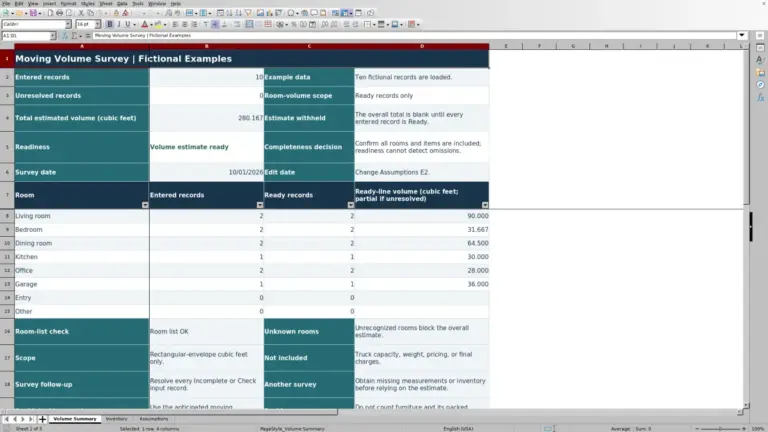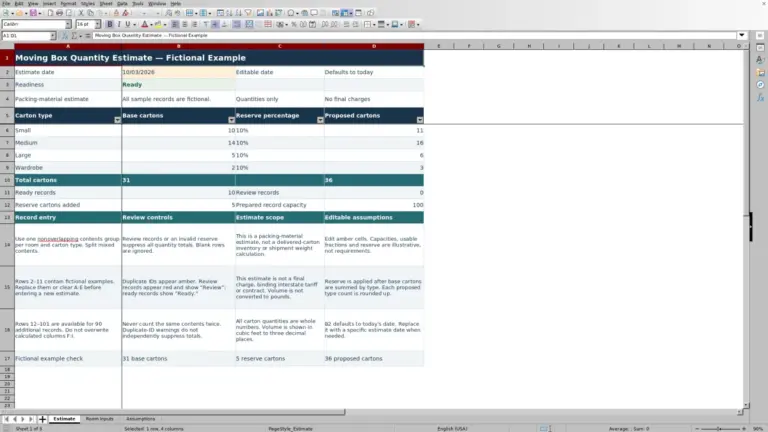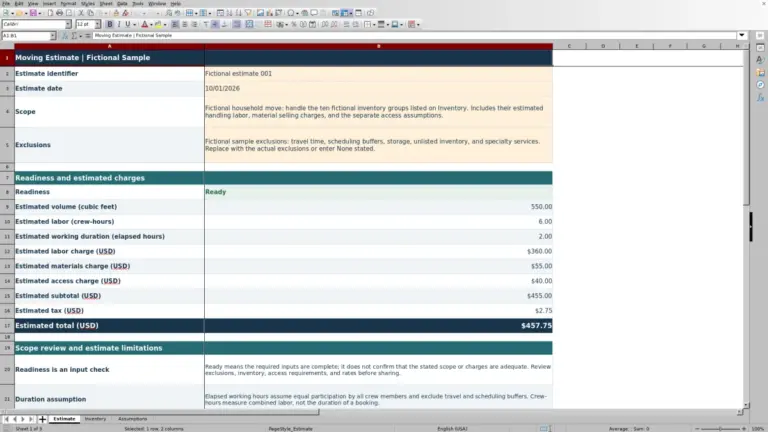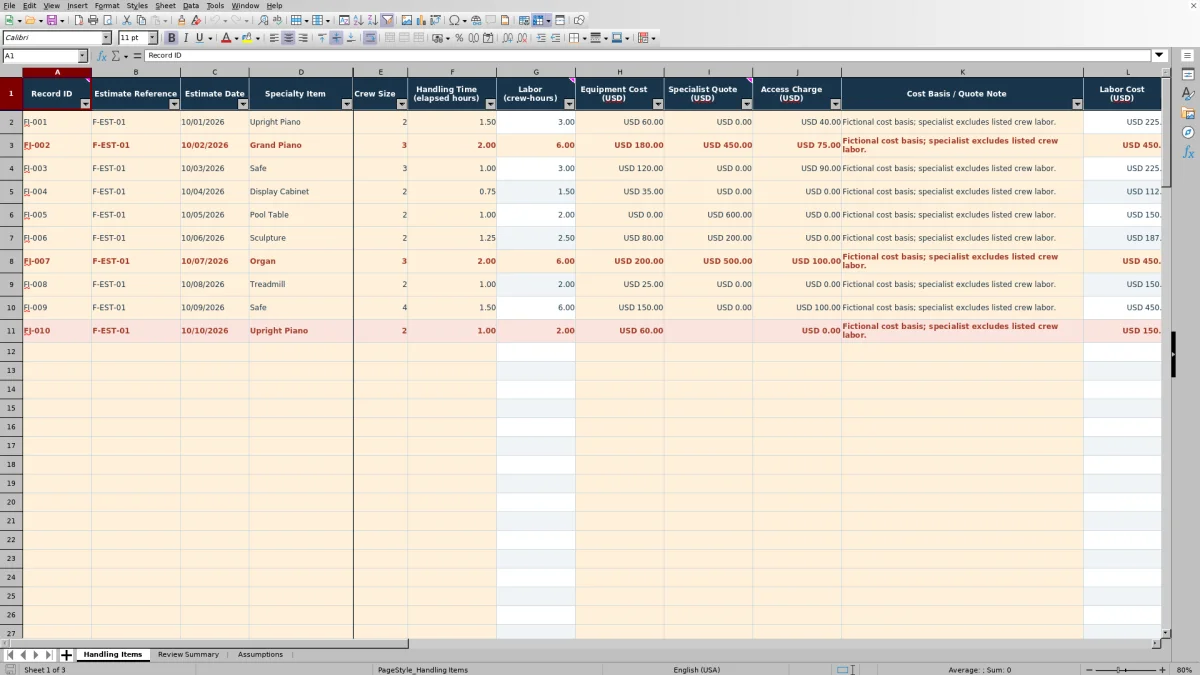
When a piano, safe or other exceptional item needs extra handling, separate that allowance from ordinary moving charges before preparing the customer estimate. The Mover Sheets specialty item handling estimate workbook brings the cost inputs and quote basis together for item-by-item review.
Enter the additional crew labor, equipment, specialist quote and access charge, then check the calculated allowance and review indicator. This Excel resource supports estimating and follow-up; an allowance is not a final charge, a contract or a lawful interstate tariff.
Where this workbook helps
- Keep incremental specialty-item costs separate from ordinary moving charges.
- Document the specialist quote basis so you can check for overlapping labor charges.
- Identify incomplete entries, elevated allowances and items needing a replacement quote.
- Distinguish complete estimated allowances from those marked Approved before transferring amounts to the main estimate.
What is in the file
How to get started
1. Prepare a working copy and set your assumptions
Save a copy for the estimate or review batch. The populated examples in Handling Items rows 2–11 and the starting cost assumptions are fictional. Clear or replace the example inputs without deleting the calculated cells. In Assumptions, review Labor rate (USD per crew-hour), Contingency percentage and Elevated-review threshold (USD).
2. Identify each specialty item
In Handling Items, enter a unique Record ID, Estimate Reference, Estimate Date and Specialty Item. Use an Excel date displayed as MM/DD/YYYY. Work within rows 2–101, and edit the pale-amber input cells rather than calculated columns G, L–O or Q.
3. Enter the incremental cost basis
Enter Crew Size and Handling Time (elapsed hours), followed by the equipment, specialist and access amounts in USD. Use Cost Basis / Quote Note to explain the quote scope and any labor overlap. Blank means unknown; zero means confirmed inapplicable. Do not enter zero merely to obtain a total.
4. Review the allowance before using it
Select Pending, Approved or Requote in Review Status, then inspect Indicator. In Review Summary, resolve incomplete entries, missing IDs and duplicate IDs. Check both the completed and reviewed allowance totals before carrying an amount into the main moving estimate.
Define the extra work before adding costs
Use this workbook for the incremental work caused by a specialty item, not the entire move. Before entering costs, decide what is already covered in the main estimate and what requires a separate allowance. This helps keep ordinary loading labor or an existing access charge from appearing twice.
Check the specialist quote against your planned crew contribution. A specialist may quote work that overlaps with the labor or equipment you intend to enter separately. Document what the quote includes and excludes in Cost Basis / Quote Note, and enter only the additional costs you intend to count. The workbook adds the amounts; it does not detect duplicate scope.
If the scope is unclear, leave the unresolved charge blank and follow up for clarification. A calculated dollar amount does not establish that an item can be handled safely or that a proposed equipment choice is suitable. Confirm those operational decisions outside the workbook before handing off the work.
Fictional example: calculate a safe-handling allowance
Suppose a fictional safe record has Record ID EX-014, Estimate Reference EX-EST-04 and Estimate Date 11/06/2026. The estimator enters four workers and 1.25 elapsed hours. The workbook multiplies those inputs to produce 5 crew-hours, not 5 elapsed hours.
For this fictional scenario, set the company labor assumption to USD 80.00 per crew-hour. Labor cost is therefore USD 400.00. Enter USD 150.00 for equipment, USD 300.00 for a specialist quote and USD 50.00 for access. The cost-basis note states that the specialist quote excludes the listed crew labor and equipment.
- Subtotal: USD 400.00 + USD 150.00 + USD 300.00 + USD 50.00 = USD 900.00.
- At a fictional 12% contingency assumption, the contingency allowance is USD 108.00.
- The estimated handling allowance is USD 1,008.00.
With all required inputs complete, Review Status set to Pending and the review threshold set to USD 1,000.00, Indicator shows High allowance. The next decision is whether the quote scope and handling assumptions support that allowance or need revision—not whether to treat the amount as an approved customer price.
The contingency is a cost allowance applied to the subtotal, not margin or markup. Taxes, minimum charges and selling-price calculations are excluded. All figures in this example are fictional user assumptions, not moving-industry rates.
Read the review indicator in the right order
Indicator checks completeness before it interprets the selected review status. A row marked Approved can still show Incomplete if a required reference, date, item, note, calculated allowance or assumption is missing or invalid for the formula's checks.
- Incomplete means required information is unresolved; the row is excluded from allowance totals.
- Requote means a complete entry is marked for a replacement quote and remains unapproved.
- Reviewed means a complete entry has Review Status set to Approved.
- High allowance means a complete pending entry is at or above the editable review threshold.
- Pending review means a complete pending entry is below that threshold.
Reviewed reflects your status entry, not an independent review. The workbook does not arrange or perform approval. Follow your company's review process before selecting Approved.
Approved and Requote take precedence over the amount threshold once the row is complete. As a result, a large approved allowance displays Reviewed rather than High allowance. Check the amount as well as the indicator when deciding which records need attention.
Choose the right total for the estimate
In Review Summary, Completed estimates — excludes incomplete records includes complete pending reviews, high allowances, reviewed items and requotes. It is a total of complete entries, not a total of approved work. Reviewed estimated allowances includes only complete records marked Approved.
An incomplete row can contain a visible estimated amount yet remain excluded from both totals—for example, when the cost inputs are complete but the quote note is missing. A zero summary total may therefore mean that no records qualify for inclusion, not that the specialty work has no cost. Check the indicator counts and Completeness message before relying on the amount.
Filtering does not narrow the summary totals. You can filter Handling Items by Estimate Reference or Indicator to inspect selected records, but Review Summary still covers all 100 working rows. If you need a job-specific total, use a working copy containing only that job's records or separately reconcile its lines. Do not transfer the all-record total into one customer's estimate merely because that customer's rows are visible.
Also inspect Duplicate-ID record count. Duplicate records remain in totals, and the count includes every row sharing an ID. Confirm whether those rows represent separate items or accidental copies before removing or renaming anything.
Troubleshooting blank results and incomplete records
Start with the inputs rather than typing a value over a formula. Calculated fields intentionally stay blank when certain required inputs are absent.
- A populated row has no calculated results: check Record ID first. Without it, the row's formulas return blank. Review Summary reports populated rows missing a record ID; those rows do not enter its record count or totals.
- Labor or allowance is blank: check that Crew Size, Handling Time (elapsed hours) and the labor-rate assumption are numeric. Equipment Cost (USD), Specialist Quote (USD) and Access Charge (USD) must also contain numbers for the subtotal to calculate. Replace text such as “TBD” with a blank while the amount is unknown, or a number once confirmed.
- An allowance appears but Indicator says Incomplete: inspect Estimate Reference, Estimate Date, Specialty Item, Cost Basis / Quote Note and Review Status. Also confirm that all three cost and review assumptions are numeric.
- A pasted date looks correct but remains incomplete: enter a genuine Excel date rather than a text label, then display it as MM/DD/YYYY.
- The amount seems unexpectedly large: check elapsed hours versus crew-hours, the labor-rate unit and specialist labor overlap. Crew Size is multiplied by elapsed time; entering total labor hours as elapsed time counts the crew again.
If a calculated cell was overwritten, restore it from an untouched copy before using the results. Recheck summary counts afterward. Input validation and completeness checks help identify entry problems, but they do not establish whether a quote is current or a handling assumption is realistic.
Control revisions before the crew handoff
If the survey changes or a specialist supplies a revised quote, save a dated copy before replacing the earlier inputs. Update Cost Basis / Quote Note to explain the changed scope and set Review Status to match the current decision. Keep the supporting quote with your normal estimate records; the note is not a substitute for its full terms and exclusions.
The labor rate, contingency percentage and review threshold are shared assumptions. Changing them affects the applicable calculations or indicators across the working range. Check the other records before changing an assumption to solve a single item's pricing issue.
A row already marked Approved remains marked Approved when its cost inputs change. If it stays complete, its indicator remains Reviewed. Reopen the review deliberately by changing the status when a revision requires another check; the workbook does not provide a verified revision-approval workflow.
Before handing the estimate basis to a packing supervisor or job coordinator, confirm the current item description, quote scope and unresolved conditions. Use your normal work instructions for the handling method and equipment arrangements. This workbook records the allowance basis; it does not dispatch a crew or book a specialist.
Compare with a blank estimating spreadsheet
A blank spreadsheet can be sufficient for a one-off allowance if you define the cost basis and check the arithmetic. This workbook is more structured when several specialty items need consistent calculations and separate review states.
| Method | Cost calculation | Review visibility | Job totals and capacity | Setup and upkeep |
|---|---|---|---|---|
| Mover Sheets workbook | Built-in labor, subtotal, contingency and allowance formulas using shared assumptions. | Defined statuses, completeness indicators and reviewed allowance totals. | Summary covers all 100 working rows; filtering does not produce a job-only total. | Replace fictional inputs, confirm assumptions and preserve calculated cells. |
| Blank spreadsheet | You create and check the cost model, formulas and rate units. | You define and maintain any review labels and completeness checks. | You choose the layout and job-total formulas and verify their ranges. | Flexible structure, with responsibility for building and maintaining its checks. |
Choose this workbook when its incremental-cost model and shared assumptions fit the work. Start with a custom sheet when you need a materially different model, such as distinct labor rates within the same estimate, and can maintain the calculations yourself. Neither approach replaces quote-scope confirmation, operational planning or your main estimate's pricing requirements.
Frequently asked questions
Can I enter an item that is not in the specialty-item list?
Yes. Select Other and describe the item and relevant scope in Cost Basis / Quote Note. The Specialty Item dropdown draws from Assumptions cells D2:D10. If you revise those list entries, remember that adding a category does not add item-specific pricing or handling rules.
Can different items use different labor rates in the same file?
The verified labor formulas use the single Labor rate (USD per crew-hour) value in Assumptions for every row. There is no per-item labor-rate field. If different rates are necessary, use separate working copies by rate basis and reconcile them externally, or use a separately checked model designed for that requirement.
Can I add more than 100 specialty-item records?
The verified entry, formula, validation and summary ranges cover Handling Items rows 2–101. Do not assume rows entered below that range will calculate or appear in the summary. Use another working copy, or have every affected range extended and checked before relying on a larger version.
Does Estimate Date show when the specialist quote expires?
No. Estimate Date records the date you enter for the estimate record. The verified fields do not include a dedicated quote-expiration field or an expiration check. Put the relevant quote date and validity conditions in Cost Basis / Quote Note, retain the supporting quote, and confirm it is still usable before carrying the allowance forward.
Editorial coverage

Nolan FairchildEstimating & job planning
Editorial scope and contact →
Mira WexfordPacking & job records
Editorial scope and contact →