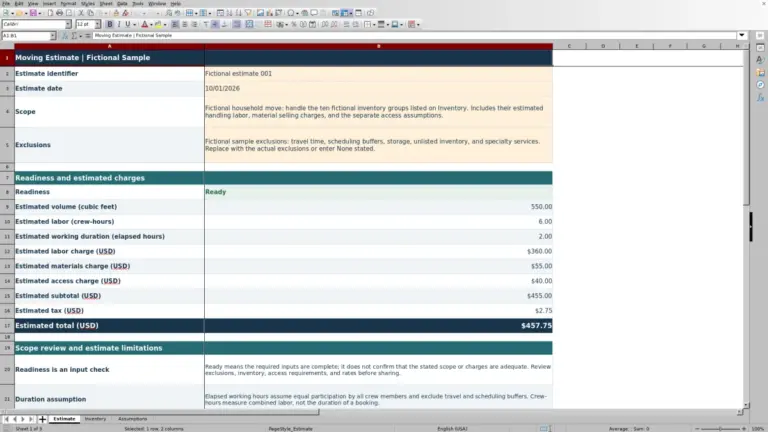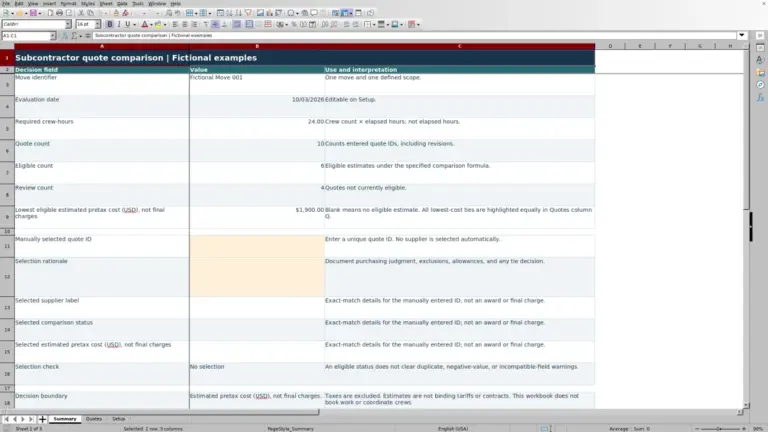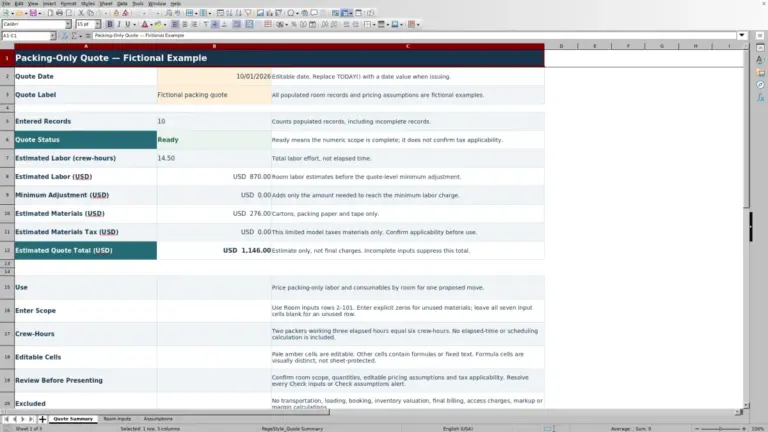
Turn your move survey into a labor forecast before preparing a quote or crew handoff. The Mover Sheets moving labor hours calculator applies editable task rates to item quantities, stair floors and carrying distances to estimate combined worker labor in crew-hours.
Use this Excel workbook for one household or office move at a time. Replace the fictional records and starting assumptions with your own survey and measured company rates. The result supports labor planning, not pricing, dispatch or a guaranteed completion time.
Where this workbook helps
- Connect surveyed quantities and access conditions to a consistent labor calculation.
- Keep base handling, stair labor and carrying assumptions separate so you can check for double counting.
- Find incomplete survey groups before relying on the combined labor total.
- Distinguish total worker labor from approximate time passing for the selected crew.
What is in the file
How to get started
1. Prepare a copy for one move
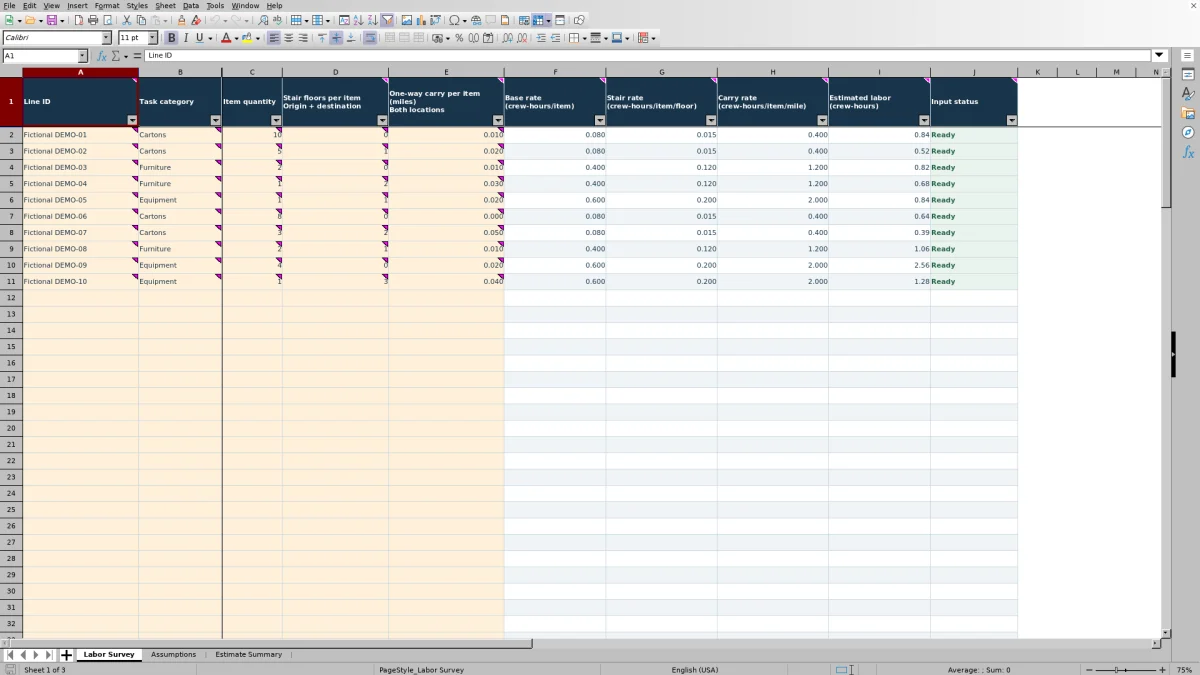
Save a job-specific copy. In Labor Survey, clear the fictional inputs in A2:E11 and remove their Fictional text format before entering actual survey data. Leave the formulas in columns F:J unchanged. Set Estimate date (MM/DD/YYYY) in Estimate Summary to the date of your estimate.
2. Set your measured labor assumptions
In Assumptions, replace the fictional rates for Cartons, Furniture and Equipment. Enter base labor in crew-hours per item, stair labor in crew-hours per item per floor, and carrying labor in crew-hours per item per mile. Set Crew size (people) and Labor allowance (%), then resolve any assumption warnings.
3. Enter consistent survey groups
Use the amber input cells in Labor Survey. Give each group a unique Line ID, select its Task category, and enter Item quantity. In column D, enter stair floors per item across origin and destination. In column E, enter the combined one-way carry distance per item at both locations, in miles. Split groups when the category, stairs or carrying distance differs.
4. Check readiness before using the result
Review Input status for each entered row, then check Estimate readiness in Estimate Summary. Use the estimate only after it shows Ready—estimate only and you have checked the survey scope and rate basis. Read the labor total, adjusted labor and approximate elapsed time as different measures, not interchangeable promises.
Set rates that match the work you measured
Before entering a survey, decide what each task rate includes. The base rate should cover the category's handling labor without the separate stair and carrying increments. Otherwise, the workbook adds those increments to labor you have already counted.
Measure rates as combined worker labor, not elapsed time. If several workers handle an item together, your rate basis must account for their combined labor. The workbook uses that basis throughout; it does not convert an elapsed-time observation into a measured task rate for you.
For carrying, include associated return walking in the rate on Assumptions. Keep the survey distance one-way. Doubling the survey distance to account for the return walk would count it twice if the rate already includes it.
The starting rates are fictional placeholders, not industry standards. Rate status checks whether all three rates in a category are numeric and nonnegative. It does not verify that they were measured or that they suit the items, equipment and working conditions on this job.
Group items by access conditions, not just category
A survey row applies the same stair floors and carrying distance to every item in that group. Keep cartons on different access paths in separate records, even when they use the same task category. Grouping unlike paths together can conceal labor that belongs in the estimate.
In Labor Survey, column D is Stair floors per item, with Origin + destination shown beneath the heading. Enter the combined floor count for one item, not a floor count already multiplied by the quantity. Column E is One-way carry per item (miles), with Both locations shown beneath it. Add the one-way carry distances at the two locations and enter that distance in miles.
Carry miles are not truck travel miles. If your survey notes use feet, convert them to miles before entry by dividing feet by 5,280. Use zero where there are no stair floors or no carrying distance; leaving an active row's numeric inputs empty makes it incomplete.
The stair input accepts nonnegative whole floors. Do not enter a fractional floor to represent an unusual access condition. Document that condition separately and review how your measured rates address it rather than forcing it into an unsupported input.
Fictional example: from carton survey to labor forecast
This fictional example uses a fresh copy with the demonstration survey records removed. Suppose one group contains 12 cartons, each with 1 combined stair floor and 0.04 miles of combined one-way carrying. Set the Cartons rates to 0.10 crew-hours per item for base handling, 0.02 crew-hours per item per floor for stairs, and 0.50 crew-hours per item per mile for carrying.
The row calculation adds base and access labor for each item, then multiplies by quantity: 12 × (0.10 + 1 × 0.02 + 0.04 × 0.50) = 1.68 crew-hours. This is the combined worker labor for the group before allowance, not the time a crew will spend on site.
With a fictional 15% Labor allowance (%) and a crew of 2 people, adjusted labor is 1.68 × 1.15 = 1.932 crew-hours. Dividing by crew size gives 0.966 elapsed hours, displayed as approximately 0.97 hours. The calculation assumes the work is evenly shared.
For this single-group summary to be ready, keep the other category rates valid and enter a valid estimate date. Before using the forecast, confirm that the group covers the intended scope and that its rates include the right handling work. Do not present this carton-only result as the duration of an entire move.
Troubleshooting blank totals and input warnings
A blank total is not zero labor. Estimate Summary leaves the initial labor total blank when no records are ready or when any survey record shows Check inputs. A partly entered record can therefore prevent an otherwise complete survey from producing a usable total.
- Check inputs on a survey row: Confirm that Line ID is present and unique, Task category matches an available category, and Item quantity is a positive whole number. Stair floors must be a nonnegative whole number, and carry miles must be numeric and nonnegative. Clear all inputs in A:E if the row is not needed.
- Missing rates in columns F:H: Check Rate status on Assumptions. A category with incomplete or invalid rates does not supply its rates to the survey. Correct the assumption inputs rather than typing over the lookup formulas.
- Blank adjusted labor: Check Labor allowance (%). It must be numeric and nonnegative. Enter 15% or 0.15 for a fifteen-percent allowance, not 15.
- Blank elapsed hours: Check Crew size (people). It must be a positive whole number. A valid labor total alone is not enough to calculate elapsed time.
- Totals visible but readiness incomplete: Review all summary checks. An invalid date or invalid rates in an unused category can leave numbers visible while Estimate readiness still says Incomplete—do not use totals.
Validation checks edited inputs, while the readiness formulas also help identify incomplete or pasted data. These safeguards do not replace a scope review: a plausible quantity or rate can still be wrong for the job.
Use elapsed hours as a planning approximation
Start with Estimated labor (crew-hours) to understand the total worker labor represented by the survey. Adjusted labor (crew-hours) applies your chosen percentage allowance to that total. Approximate elapsed time (hours) then divides the adjusted result by Crew size (people).
That final division assumes evenly shared work. Adding workers reduces the calculated elapsed time, but it does not establish that a narrow stairway, shared elevator or task requiring coordinated handling will move faster in the same proportion. Review those constraints before deciding how to staff the job or communicate timing.
The allowance is an editable planning assumption, not a measured delay forecast or universal moving rule. Confirm what your rates already include before using an allowance for additional uncertainty. The workbook has no separate scheduling-conflict or truck-travel calculation, so it should not be treated as a complete daily crew schedule.
It also contains no pricing calculation. If you use the labor forecast in a separate estimate, review your applicable pricing basis there; this workbook does not establish a lawful interstate tariff.
Revise the survey without losing the estimate basis
If a customer adds items or an access path changes, save a dated copy before editing. Update the affected quantities or split the group when its access conditions no longer match. Then review the changed labor and readiness results before handing off the revised estimate.
Changing a category rate affects every survey record using that category. Keep a separate note of why you changed the rate and what evidence supports it. Do not assume the workbook retains a version history or notifies anyone of the revision.
Stay within the prepared range of rows 2–101. The summary and checks reference those 100 records; adding data below the range is not a supported automatic expansion. If the survey needs more groups, use a separately verified approach rather than assuming extra rows will enter the total.
Formula cells are not locked. Amber cells identify inputs, but sheet protection is not enabled. Paste into input cells only. If a formula is overwritten, restore it from an unchanged copy and recheck the results before using the estimate. For a crew handoff, include separate notes about access constraints and work outside the rate scope without adding unnecessary customer details to the workbook.
Compare with a manual labor estimate
Choose the method based on how consistently you can describe the work and maintain its assumptions. This workbook provides a repeatable calculation structure, while a paper survey with calculator totals leaves more of that structure to the estimator.
| Method | Calculation basis | Input review | Revisions and handoff | Scope limits |
|---|---|---|---|---|
| Mover Sheets Excel workbook | Applies category rates to quantity, stair floors and carry miles; adds an allowance and divides by crew size. | Checks prepared records and assumptions, withholds survey totals for flagged records, and reports estimate readiness. | Recalculates referenced inputs in a spreadsheet application; dated copies and explanatory notes remain your responsibility. | One move, three prepared categories and 100 survey records; no pricing or scheduling-conflict calculations. |
| Paper survey with a calculator | You choose the calculation layout and manually apply each rate and allowance. | You check missing entries, duplicate groups, units and arithmetic yourself. | You revise totals and carry forward the assumptions and notes manually. | Can record varied job observations, but any labor model and consistency checks must be supplied by the estimator. |
Use the workbook when your survey fits its category and access model and you want repeatable labor arithmetic with visible readiness checks. A paper survey can remain useful for field observations or unusual tasks, provided you reconcile those notes with the final estimate. Neither method validates the measured rates or guarantees job duration.
Frequently asked questions
Can I use it for both household and office moves?
Yes. The workbook guidance allows one household or office move per file. Use it where Cartons, Furniture and Equipment, together with the stair and carry inputs, adequately describe the labor you are estimating. Keep specialized work that does not fit that model separately documented and reviewed.
Can a rate of zero pass the checks?
Yes. The rate checks accept numeric, nonnegative values, including zero. A valid survey can therefore produce zero labor if its applicable rates are all zero. That is different from a blank result caused by incomplete inputs. Confirm that any zero rate is intentional; Ready does not mean the rate is operationally realistic.
Why might displayed row values not add up exactly to the total?
Labor results display to two decimal places, but calculations retain full precision. Adding the rounded values you see can differ slightly from the displayed total. Check the underlying values before changing a rate or overwriting a formula to force agreement.
What should I do if formulas show no results when I open the file?
Open the workbook in a spreadsheet application and recalculate it before reviewing the results. The file requests automatic recalculation for Excel and LibreOffice, but formula results were not cached during generation and spreadsheet-engine recalculation was not verified. After recalculating, review the readiness messages; missing or invalid inputs can also leave results blank.
How do I enter the estimate date correctly?
Enter an actual spreadsheet date in Estimate Summary cell B1, displayed as MM/DD/YYYY. The readiness check requires a whole-date value, so text that only looks like a date or a value containing a time fraction may be flagged. Replace the fictional demonstration date with the date relevant to your estimate.
Editorial coverage

Nolan FairchildEstimating & job planning
Editorial scope and contact →
Mira WexfordPacking & job records
Editorial scope and contact →