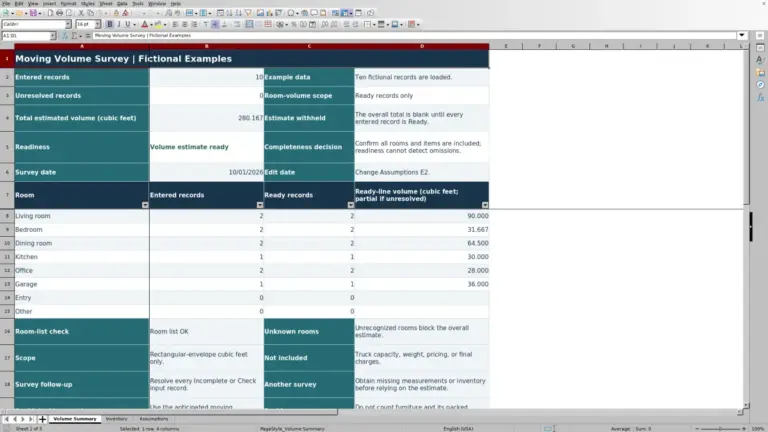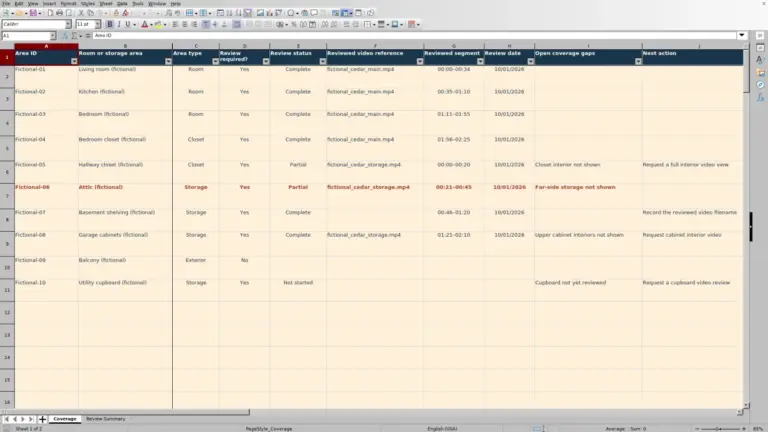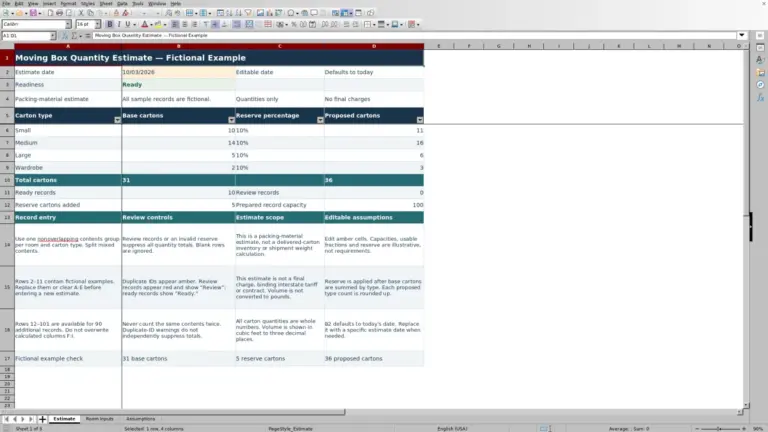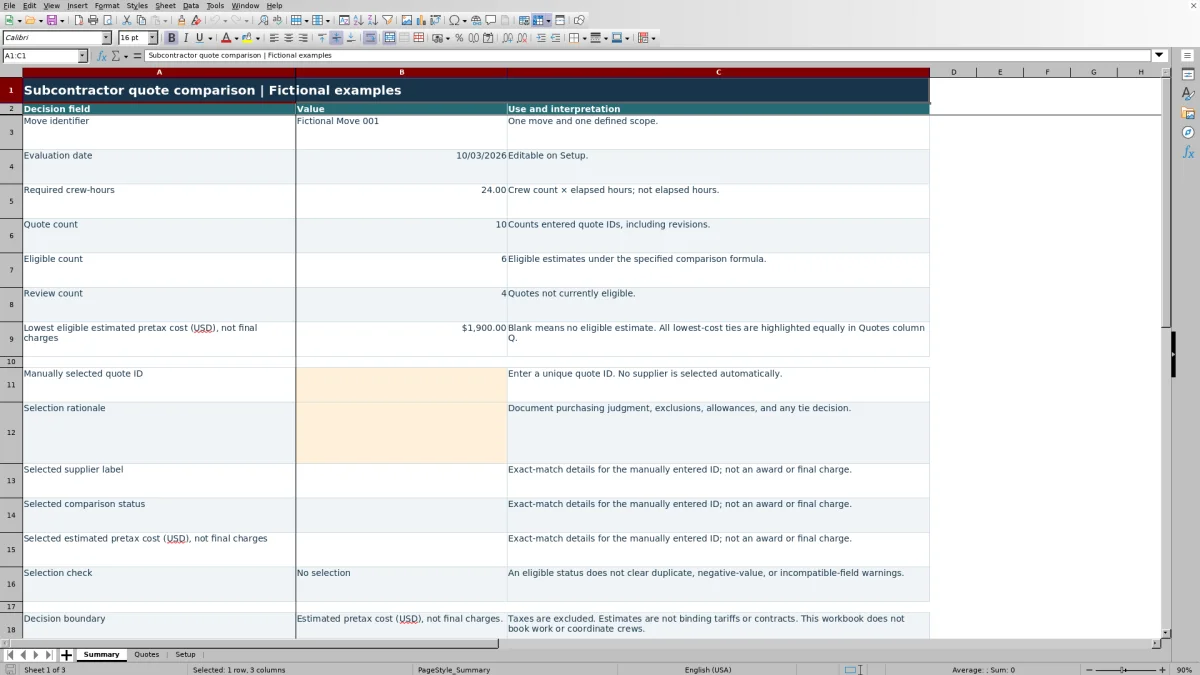
Before choosing an outside lifting or packing supplier, compare what each quote actually covers. Mover Sheets’ Excel workbook helps you compare quotes for one move and one defined scope, including additional costs and documented allowances for excluded work.
Use the estimated pretax costs, review statuses and selection rationale to support your purchasing decision. The included records are fictional examples. You choose the supplier manually; the workbook does not book work, coordinate crews or calculate final charges.
Where this workbook helps
- Compare fixed and per-crew-hour quotes using the same required work and labor assumptions.
- Keep excluded work and its estimated allowance visible before relying on a low quoted price.
- Identify entries that need scope, date or completeness follow-up before comparison.
- Record your selected quote and purchasing rationale alongside its estimated pretax cost.
What is in the file
How to get started
1. Define the move and required work
Save a working copy and replace the fictional examples before using it for a job. On Setup, enter the Move identifier, Current scope version, Required crew count, Required elapsed hours and Required work. Use a nonsensitive job identifier rather than customer addresses. Required crew-hours calculates crew count multiplied by elapsed hours.
2. Set the evaluation date and enter quotes
Enter the intended Evaluation date on Setup. On Quotes, give each entry a unique Quote ID and enter its Supplier label, actual Quote date, Valid-through date and Scope version. Replace the sample date formulas with the supplier’s dates in MM/DD/YYYY format.
3. Enter the applicable price and additional costs
Choose Fixed or Per crew-hour in Pricing basis. For Fixed, use Fixed quote (USD) and leave the hourly fields blank. For Per crew-hour, enter Labor rate (USD/crew-hour) and Minimum billed crew-hours, leaving the fixed amount blank. Enter only incremental charges in columns J–L, using explicit zeros for costs already included.
4. Confirm scope and resolve review items
Complete Exclusions and allowance basis, using “None” only when appropriate. Set Equivalent scope confirmed to Yes only after every gap has been identified and costed. Check Comparison status and the warning formatting; an Eligible status does not clear every input warning.
5. Document your selection
On Summary, review the eligible count and lowest eligible estimated pretax cost. Enter a unique ID in Manually selected quote ID, then complete Selection rationale. Check the retrieved supplier, status, cost and Selection check before using the comparison in a purchasing decision.
Define equivalent work before comparing prices
Start with what the subcontractor must do, not the amount on the quote. In Setup, use Required work to describe the lifting or packing boundaries, access conditions, materials and exclusions. For an office packing job, that might mean specifying whether cartons, labeling and desk-content packing are included. Keep customer addresses and sensitive details outside the comparison.
The Scope version on each quote must match Current scope version on Setup. A matching label alone does not prove that the supplier covers the work. Equivalent scope confirmed is your confirmation, not a workbook inspection of the supplier’s offer.
If a supplier excludes part of the required work, identify the gap and document how it will be costed before entering Yes. A monetary allowance makes the gap visible in the estimate; it does not commit anyone to performing that work. Leave the quote under scope review while the gap remains unresolved.
Separate the quoted price from incremental costs
A fixed quote is compared as its fixed amount plus additional access/travel, additional materials and the excluded-work allowance. An hourly quote uses the rate per crew-hour multiplied by the greater of required crew-hours or minimum billed crew-hours, then adds the same three cost categories.
This hourly calculation uses total worker-hours: crew count multiplied by elapsed hours. Confirm the supplier’s billing unit before entering a rate. A price per elapsed hour for an entire crew is not the same input as Labor rate (USD/crew-hour), and the workbook does not provide a separate whole-crew elapsed-hour pricing basis.
Columns J–L on Quotes are for additional costs only. If cartons or travel are already included in the base quote, enter zero in the corresponding additional-cost field rather than adding them again. Excluded-work allowance (USD) is your documented estimate, not a supplier charge established by the workbook.
All comparison amounts exclude taxes. Rates, minimums, fees and allowances are editable assumptions for the job, not universal moving-industry rules. The estimate does not establish a lawful interstate tariff or a contract.
Fictional example: a minimum changes the hourly estimate
For this fictional illustration, Setup describes move “Fictional Office Pack,” scope S2, with three workers for five elapsed hours. Required crew-hours therefore calculates to 15. Set Evaluation date to 08/12/2026 and document the packing boundaries in Required work.
Enter unique quote ID “Fictional-EX01” for “Fictional Packing Supplier,” with Quote date 08/10/2026, Valid-through date 08/20/2026 and Scope version S2. Choose Per crew-hour, leave the fixed amount blank, and enter USD 65.00 per crew-hour with an 18 crew-hour minimum.
- Labor: USD 65.00 × the greater of 15 or 18 crew-hours = USD 1,170.00.
- Additional access/travel: USD 80.00.
- Additional materials: USD 120.00.
- Excluded-work allowance: USD 150.00 for a separately arranged labeling task, with the estimating basis recorded in Exclusions and allowance basis.
The normalized estimate is USD 1,520.00 pretax. If all gaps are identified and costed and Equivalent scope confirmed is Yes, these inputs satisfy the comparison’s eligibility checks.
The minimum means the labor component is based on 18 billed crew-hours even though the planned work requires 15. It does not change the planned five elapsed hours into a duration forecast. Before choosing this quote, confirm the minimum with the supplier and check that the separate labeling arrangement and allowance are reasonable.
Troubleshooting blanks, statuses and input warnings
A blank estimate is not a free service. For a row with a Quote ID, first check the Pricing basis and its required numeric price fields. Each of the three additional-cost fields must contain a number, including zero where applicable. For hourly pricing, Setup must also provide numeric required crew-hours.
Status checks run in order, so resolving one problem can reveal another. Use the displayed result to guide the next correction:
- Incomplete: check supplier label, numeric dates, scope version, exclusions notes, price inputs and the required Setup entries.
- Scope mismatch: confirm the supplier quoted the current work before changing its Scope version. Do not relabel an old offer simply to make it match.
- Date review: check whether the quote starts after, or expires before, the Evaluation date.
- Scope review: resolve the work gaps before changing Equivalent scope confirmed to Yes.
On Summary, a blank lowest eligible cost means there is no eligible numeric estimate. A displayed USD 0.00 is different: numeric zero inputs can produce a zero estimate, which needs its own reasonableness check.
Also inspect the warning formatting for duplicate IDs, negative values, incompatible pricing fields and missing notes. These issues can require correction even when a row says Eligible. For Fixed pricing, clear the hourly fields; for Per crew-hour, clear the fixed amount. Positive allowances remain amber and need a documented basis rather than being treated as errors to erase.
Keep quote dates and revisions tied to the decision
The initial Evaluation date uses TODAY(), while the sample quote dates use TODAY() and TODAY()+14. Those formulas move with the calendar when Excel recalculates. They are useful for fictional examples, but they are not evidence of when a supplier issued an offer or how long it remains valid.
For an actual comparison, enter the supplier’s stated dates and a fixed Evaluation date if you need the file to preserve the date of your decision. Eligibility requires the evaluation date to fall on or between the quote date and valid-through date. Use actual Excel date values, displayed as MM/DD/YYYY, rather than text that merely looks like a date.
If the required work changes, save a dated copy before updating the scope and assumptions. Give a revised supplier quote a distinct Quote ID and confirm which version it covers. Summary counts entered IDs, including revisions; it does not determine which revision supersedes another. If an older offer is no longer a candidate, retain it in the saved earlier copy rather than leaving it eligible in the active comparison.
Use the lowest eligible cost as a starting point
Summary reports the lowest eligible estimated pretax cost, and Quotes highlights all lowest-cost ties equally in column Q. Neither action selects a supplier. Review exclusions, allowances and remaining warnings before entering the chosen ID on Summary.
Use Selection rationale to explain the decision, including a tie or a choice that is not the lowest estimate. For example, document that an apparent price difference depends on an uncertain excluded-work allowance and describe the follow-up needed. Keep statements supported by the supplier’s offer rather than treating a status label as evidence of capability.
Eligible means comparable under the workbook’s checks; it is not a licensing, insurance or supplier qualification check. Selection check also asks for Required work and a rationale, but its final prompt remains “Review flags and exclusions,” not an approval or award.
If the selected ID is duplicated or missing, correct the ID before relying on the retrieved details. A unique match links your decision to one quote row; it does not book the work or notify the supplier.
Compare with a blank spreadsheet or paper quote log
Choose a comparison method based on how much repeatable calculation and review structure you need for the move. The workbook provides a defined comparison model, while a blank spreadsheet or paper log requires you to establish that model yourself.
| Method | Cost comparison | Scope and date review | Selection record | Operating boundary |
|---|---|---|---|---|
| Mover Sheets workbook | Calculates fixed or per-crew-hour estimates with minimums and incremental costs. | Uses entered scope versions, dates and confirmation to assign review statuses. | Retrieves details for a manually selected ID and provides a rationale field. | One move and scope; 100 quote rows; no booking or crew coordination. |
| Blank spreadsheet | You design and check the formulas and cost categories. | You create checks or review each quote manually. | You design the decision fields and links to quote entries. | Adaptable to other pricing structures, with responsibility for building and testing the model. |
| Paper quote log | You calculate and transcribe comparable totals manually. | You mark dates, scope gaps and exclusions by hand. | You write the selected offer and reason alongside the quotes. | Can suit a small comparison, but recalculation and revision review remain manual. |
Use this workbook when the offers fit its fixed or per-crew-hour model and you want consistent comparison checks. A paper log may be sufficient for a few straightforward offers. If suppliers use other billing structures, confirm and document any conversion before entering them, or use a separately checked comparison designed for those units.
Frequently asked questions
Can I compare packing and lifting suppliers in the same file?
Yes, if each offer is being compared against the same defined required work, with any gaps identified and costed. Do not rank a packing-only offer directly against a lifting-only offer as though they cover the same work. Use separate copies when you are making separate purchasing decisions for different scopes.
How many quotes can I enter?
The prepared Quotes range covers rows 2–101, providing 100 quote entries. Summary formulas use that range. Rows added below it are not included in the supplied summary calculations, so do not assume that extending the sheet also extends the comparison.
Why does Summary still ask me to document required scope when a quote is Eligible?
The quote eligibility formula checks required identifiers, labor assumptions, dates, matching scope version and scope confirmation, but it does not test whether Required work on Setup is filled in. Selection check separately prompts “Document required scope” when that field is blank. Complete the work description before relying on the comparison.
Can I filter Quotes to compare only the suppliers I want?
You can use the Quotes filter to inspect a subset of entries. Filtering does not change the supplied Summary calculations: they still evaluate the full prepared range, including hidden rows. Do not assume the lowest eligible estimate is limited to the rows currently visible.
Does the selected estimate become the supplier’s final charge?
No. It remains an estimated pretax comparison amount, including any user-entered allowance for excluded work. Confirm the supplier’s terms, applicable taxes and unresolved scope details separately. Entering a selected quote ID is a purchasing record, not a contract, booking or lawful interstate tariff.
Editorial coverage

Nolan FairchildEstimating & job planning
Editorial scope and contact →
Mira WexfordPacking & job records
Editorial scope and contact →