Before you price a move, separate measured access from details that still need confirmation. The Mover Sheets moving access survey checklist is an Excel workbook for recording access checkpoints at the origin and destination and identifying the next follow-up.
Use it to organize survey findings for an estimator or job coordinator. Its screening results apply to individual checkpoints—not furniture fit, building permission or approval of the whole move.
Where this workbook helps
- Keep origin and destination access findings tied to a job reference and checkpoint description.
- Separate missing survey inputs from access details that still need confirmation.
- Bring measurements outside your screening assumptions to the estimator’s attention.
- Review checkpoint action counts before handing survey findings to the estimating team.
What is in the file
How to get started
1. Save a working copy and review assumptions
Keep a clean copy before editing. Replace the fictional examples before operational use, and review the editable thresholds on Settings. These are screening assumptions, not industry rules or legal minimums.
2. Identify each checkpoint
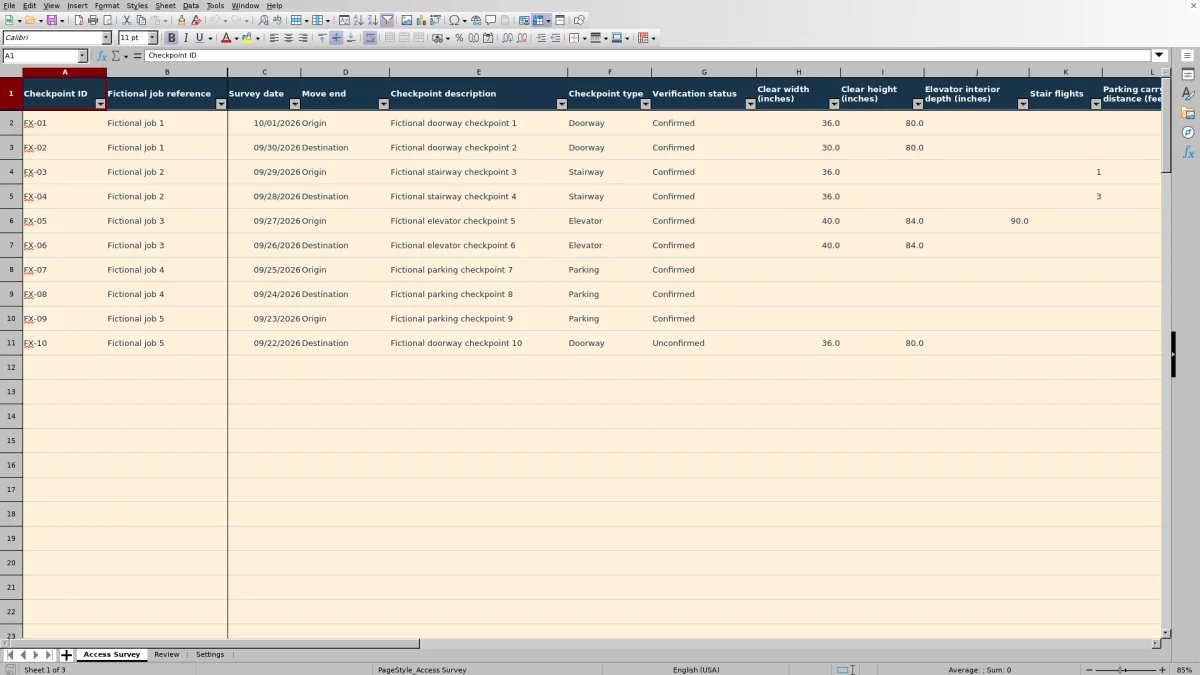
On Access Survey, use one row per doorway, stairway, elevator or parking checkpoint within rows 2–101. Enter a unique Checkpoint ID, a non-sensitive job label under Fictional job reference, a Survey date in MM/DD/YYYY format, the Move end and a useful Checkpoint description. Do not enter personal addresses or access codes.
3. Record measurements and confirmation details
Select the Checkpoint type and Verification status, then enter the applicable measurements in the labeled units. Complete Restriction review and add Restriction notes when you select Restrictions noted. For parking, also record Parking permission status.
4. Resolve actions before the estimating handoff
Read Input completeness, Measurement screening and Next action without overwriting their formulas. Use the Access Survey filter to inspect outstanding actions, then check Review for counts and orphan job inputs. Resolve the underlying issue rather than changing a status just to obtain a ready result.
Record the access path one checkpoint at a time
Break the route from the loading position to the rooms into separate checkpoints. A single property row can hide a narrow doorway behind an otherwise usable entrance. Use Checkpoint description to distinguish locations without recording a personal address—for example, a fictional description such as “destination service corridor doorway.”
Width depends on checkpoint type. Clear width (inches) means the opening width for a doorway, the narrowest stair width for a stairway and the interior width for an elevator. Record elevator entrance openings as separate Doorway checkpoints; the elevator’s interior dimensions do not describe its entrance.
Keep dimensions in inches, Parking carry distance (feet) in feet and Stair flights as a count. The workbook cannot establish that you surveyed every part of the route. Compare the recorded checkpoints with the actual origin and destination access paths before treating the survey as complete.
Read the next action in the right order
The Next action formula prioritizes missing information before confirmation and estimator review. That order matters: an early action can hide a later issue until you correct the inputs.
- Complete inputs: finish the required information for that checkpoint before relying on screening.
- Confirm access: the row is complete, but Verification status is not Confirmed, Restriction review is Unconfirmed, or a parking checkpoint has Unconfirmed permission.
- Estimator review: confirmation conditions are satisfied, but a measurement is flagged or restrictions are noted.
- Ready for estimating: the checkpoint has passed those recorded checks.
For example, a complete row can show Review under Measurement screening while Next action still says Confirm access. Resolve the confirmation question, then read the action again. Ready for estimating is checkpoint-level only. It does not approve the property or establish that the crew can move a particular item through it.
Fictional example: a narrow destination doorway
Consider the supplied fictional checkpoint FX-02 for Fictional job 1. Its Survey date is 09/30/2026, Move end is Destination and Checkpoint type is Doorway. Verification status is Confirmed, Restriction review is Clear, and the recorded opening is 30 inches wide by 80 inches high. The identifying fields are filled in.
With the supplied fictional Settings values, the width review threshold is 32 inches and the height review threshold is 78 inches. The width falls below its threshold while the height does not. The completed row therefore produces Complete under Input completeness, Review under Measurement screening and Estimator review under Next action.
A screening flag is a follow-up prompt, not a fit verdict. Compare the opening with the items and handling plan, inspect the approach and turns, and decide whether an alternative path or additional estimating allowance needs consideration outside this workbook.
The comparisons are strict: widths, heights and elevator depths are flagged when below their thresholds; stair flights and parking carry distances are flagged when above theirs. Equality alone does not trigger a measurement flag. Change Settings only to reflect your chosen screening assumptions—not to remove an inconvenient result.
Separate parking distance from permission and restrictions
A measured parking carry does not establish that the crew may use that loading position. Record Parking carry distance (feet), Parking permission status and Restriction review separately so the estimator can distinguish physical access from an unresolved permission question.
For a complete parking row, Unconfirmed permission leads to Confirm access even if the carry distance produces No threshold flag. A confirmed row with Restrictions noted leads to Estimator review. Add the relevant operational condition in Restriction notes, such as a fictional loading-window restriction, rather than leaving the estimator to infer it from the status.
Verify building and parking permissions outside the workbook. It records your selected status; it does not obtain authorization, reserve an elevator or calculate an access charge. Decide separately how confirmed conditions affect the estimate and crew instructions.
Troubleshooting blank results and incomplete rows
A blank result is not a clearance. The result columns stay blank when Checkpoint ID is missing. Measurement screening also stays blank until Input completeness is Complete.
- Job label entered but no results: add the missing Checkpoint ID. Review counts these rows as Orphan job inputs without ID when the job-reference field is populated. A row containing other details but neither an ID nor a job reference is not covered by that count.
- Complete inputs remains: check identifying fields, status selections and measurements required by the checkpoint type. Enter positive numeric dimensions rather than text such as “about three feet.” Doorways need width and height; elevators also need interior depth.
- Survey date looks valid but the row remains incomplete: make sure it is an Excel date, not text that merely resembles one.
- Restrictions noted without an explanation: fill in Restriction notes so the estimator has a condition to review.
- Unexpected counts or results: inspect duplicate IDs and confirm that the formulas in columns P–R have not been overwritten. Recorded checkpoints counts populated IDs, not unique checkpoints.
Blank inputs are allowed while you work. Return to Next action before handoff, and restore damaged formulas from a clean copy if necessary. The file has no password protection to prevent accidental edits.
Hand off findings without mistaking counts for job approval
Use Review to see how many recorded checkpoints need input completion, confirmation or estimator review. These formulas count the prepared Access Survey range across the workbook; they are not a job-by-job approval report. Filtering the survey for one job does not turn the Review counts into a filtered-job summary.
Before sending findings to the estimator or packing supervisor, inspect that job’s origin and destination rows directly. Pass along unresolved restrictions and confirmation needs with the survey copy. The action label identifies the kind of work still needed; it does not assign someone to do it or notify them.
If a customer reports changed access after the survey, save a dated copy before revising measurements or statuses. Recheck the affected rows and manually communicate material changes. Also preserve the earlier assumptions when revising Settings: the thresholds apply across the prepared rows and can change their screening results.
Compare Excel screening with a paper access checklist
Choose the method based on how you collect findings and who reviews them. This workbook provides structured screening after entry; a paper checklist can support handwritten field notes without requiring spreadsheet entry at the property.
| Method | Field capture | Follow-up screening | Summary and handoff | Main limitation |
|---|---|---|---|---|
| Mover Sheets Excel workbook | Prepared measurement fields and status selections for individual checkpoints. | Formulas identify incomplete inputs, confirmation needs and threshold-based review. | Action counts and survey filtering support review of the recorded findings. | Only the prepared range is covered; results depend on entry accuracy and do not establish fit or permission. |
| Paper access checklist | Handwritten measurements, notes and sketches, depending on the form used. | The surveyor or estimator must manually check missing details and apply screening assumptions. | Someone must read and tally outstanding items and pass along the sheet or a copy. | Changes and summaries require manual reconciliation; unclear writing may require follow-up. |
Use the workbook when you want consistent checkpoint statuses and a formula-based review of entered findings. Use paper when handwritten capture suits the site visit, then reconcile those notes before estimating. If you transfer paper findings into Excel, verify the units and statuses against the original notes rather than assuming transcription is complete.
Frequently asked questions
Does this checklist calculate moving prices or access charges?
No. It screens recorded access information for follow-up. It does not calculate charges, convert volume to weight or produce binding estimates or contractual decisions. Carry confirmed access findings into your separate estimating process; an estimate does not establish a lawful interstate tariff.
Can I add checkpoints beyond the prepared rows?
Rows 2–101 are prepared for entry. Simply typing below them does not extend the verified formulas, validation, filtering or Review ranges. Use another clearly labeled copy or have the workbook structure deliberately extended and checked before relying on additional rows.
Does No threshold flag mean furniture will fit?
No. It means the applicable measurements did not trigger the current screening thresholds on a complete row. Furniture dimensions, turning space, handling clearance and building permission still require separate assessment.
What should I do with the fictional examples?
Keep an untouched copy for reference, then replace all fictional examples before operational use so they do not remain in the review counts. Use non-sensitive internal job labels under Fictional job reference, and keep personal addresses and access codes out of this file.
Can I change the dropdown choices by editing Settings?
The status lists shown on Settings describe the available choices, but the Access Survey dropdowns use fixed lists. Editing the displayed list text alone will not update those dropdowns. Keep the existing choices unless you also review the validation and formulas that depend on exact status wording.
Editorial coverage

Nolan FairchildEstimating & job planning
Editorial scope and contact →
Mira WexfordPacking & job records
Editorial scope and contact →