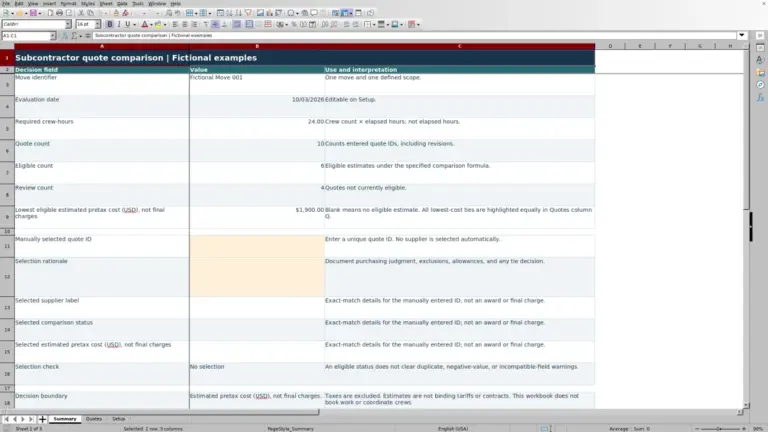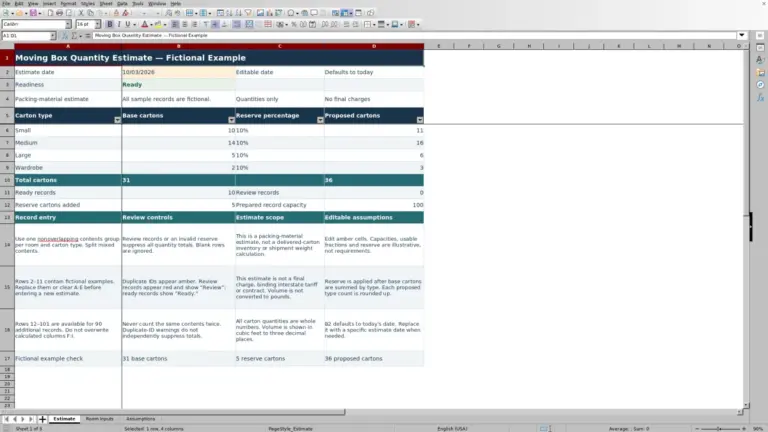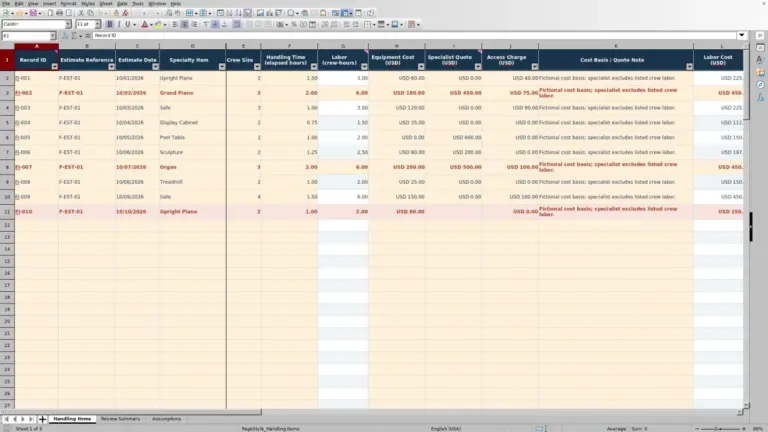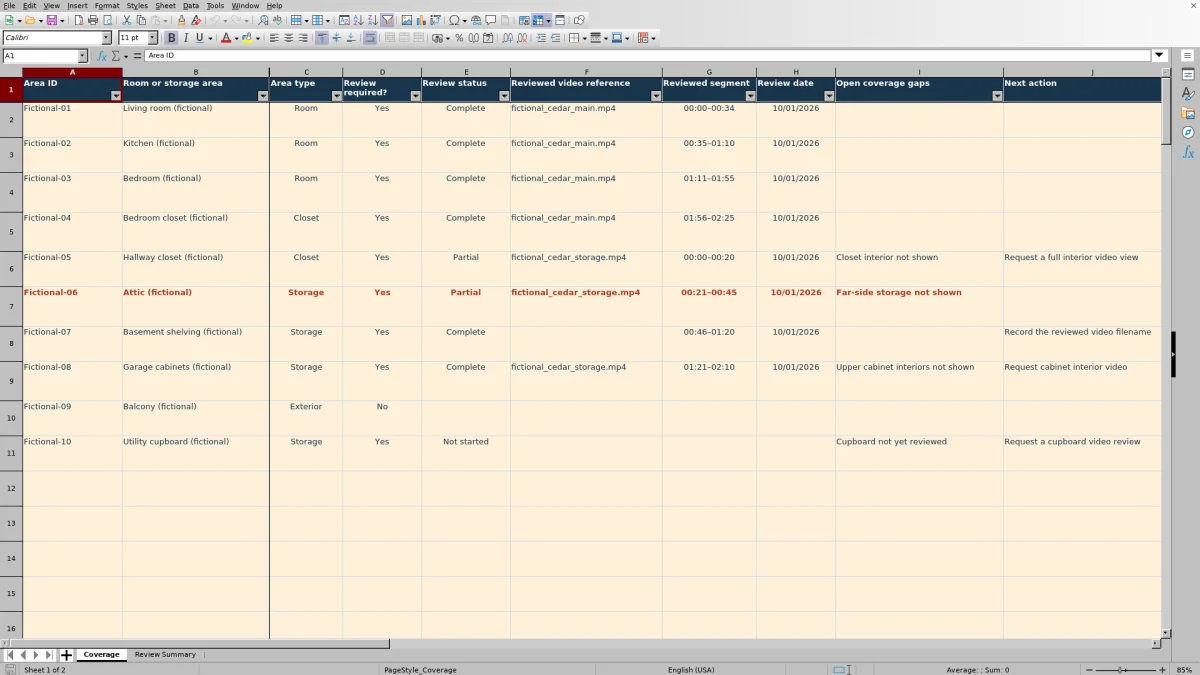
Before building a moving estimate from a remote survey, check which rooms and storage areas still need a closer look. The Mover Sheets moving virtual survey coverage checklist helps you record reviewed video references and identify gaps in the areas you have listed.
Use this Excel workbook to organize additional review and customer follow-up. It is a coverage checklist, not a price estimate, and a completed list does not prove that every belonging has been disclosed.
Where this workbook helps
- Keep room and hidden-storage review gaps visible before preparing an estimate.
- Give the next reviewer a video reference and segment to locate the relevant footage.
- Separate documented exclusions from areas that still need evidence or review.
- Prioritize unresolved areas using an editable calendar-day follow-up threshold.
What is in the file
How to get started
1. Replace the fictional sample and set the survey date
Save a working copy. On Coverage, replace the fictional inputs in rows 2–11 while preserving the formulas in Coverage result and Follow-up flag. On Review Summary, replace the sample survey label, enter Survey date, and set Follow-up threshold (calendar days). Enter the survey date before entering review dates.
2. Confirm the area list
Give each room or storage area its own Area ID and descriptive name. Select Area type and Review required?. Check the list with the customer, including closets and other hidden storage, before setting Inventory confirmation to Confirmed on Review Summary.
3. Record what you actually reviewed
On Coverage, select Review status and enter Reviewed video reference, Reviewed segment, and Review date. Record anything still unseen in Open coverage gaps and describe the requested follow-up in Next action. For an excluded area, select No under Review required? and enter an Exclusion reason.
4. Resolve exceptions before the estimating handoff
Filter Coverage result to omit Covered, Excluded, and blanks. Use Follow-up flag to identify unresolved areas that have reached your threshold. Check the counts and Decision on Review Summary, then pass any remaining limitations to the estimator rather than treating them as reviewed coverage.
Build the area list before judging completeness
A video can show the main rooms clearly while missing a closet, garage cabinet, or office supply room. List these areas separately when they need their own review decision. Use Room or storage area for a name the customer and estimator will recognize, and choose the appropriate Area type: Room, Closet, Storage, Exterior, or Other.
Confirm the list with the customer before changing Inventory confirmation to Confirmed. That field records your explicit check; the workbook does not infer confirmation from the footage or from completed rows. Here, confirmation concerns the room and storage-area list, not a counted or valued inventory of belongings.
An area that never appears on the list cannot create a missing-coverage warning. Even Listed-area coverage complete means only that the entered list is confirmed and its rows have no unresolved results. Revisit the list if the customer mentions another storage location.
Distinguish reviewed evidence from a completed status
Selecting Complete in Review status is not enough to produce Covered. A required area also needs its basic setup, a Reviewed video reference, a Reviewed segment, and a Review date, with Open coverage gaps left empty. These checks help distinguish a status selection from a documented review.
Covered is a field-based result, not an inspection of the video. The workbook checks whether the evidence fields are populated; it does not verify that a filename is correct or that the segment clearly shows the whole area. Watch the referenced footage and make that judgment yourself.
Make Next action specific enough for another coordinator to use, such as asking for a view behind stored cartons rather than simply writing “follow up.” That field supports the handoff but does not control whether the formula returns Covered. Do not clear a genuine gap merely to change the result.
Use Excluded only when Review required? is No and an Exclusion reason is recorded. An exclusion documents a scope decision; it is not evidence that the area was reviewed.
Fictional example: interpret the coverage percentage
Consider a fictional six-area survey. Five areas have Review required? set to Yes. Of those, three have Complete status, all required evidence fields, and no open gaps. A fourth has Complete status but no Reviewed segment. The fifth has all evidence fields but an unresolved gap. The remaining area has Review required? set to No and a documented exclusion reason. Every row has its basic setup completed.
The formulas return three Covered rows, one Evidence missing row, one Gaps open row, and one Excluded row. Review Summary therefore shows six listed areas, five required areas, three covered areas, one excluded area, and two unresolved areas.
Required coverage percentage divides covered areas by required areas: 3 ÷ 5 = 60.00%. This is an area-count measure, not a percentage of shipment volume, weight, value, or review effort. A small closet counts as one area just as a large room does.
With Inventory confirmation set to Confirmed, Decision reads Resolve listed exceptions. The next step is to locate the missing segment and obtain or review footage addressing the open gap—not to treat the percentage as permission to quote the unseen contents.
Use follow-up timing as a review priority
Set Follow-up threshold (calendar days) on Review Summary to your chosen interval. The input accepts whole numbers from 0 through 30. The supplied fictional threshold is an example, not a moving-industry rule or a promised response time.
For an unresolved row, the formula compares As-of date minus Survey date with that threshold. Once the elapsed calendar days meet or exceed the threshold, Follow-up flag becomes Follow up; before then it shows Pending. Age starts on the survey date, not on the individual row’s Review date. Reviewing one area later does not restart its follow-up clock.
Covered, Excluded, and unused rows have blank follow-up flags. Unresolved rows show Set follow-up assumptions when the survey date or threshold is missing. The as-of date comes from TODAY(), so results can change when the workbook recalculates on another day.
The flag is a worksheet prompt. It does not send a message, assign someone to call the customer, or confirm that contact occurred. Use Next action to state what needs to happen and handle the actual follow-up through your normal process.
Troubleshooting: common errors and solutions
When a result does not match your expectation, check the row’s inputs before changing a formula. These common entry errors and solutions explain what to correct and when a blank or zero is intentional.
- Complete but not Covered: Read Coverage result first. Evidence missing means a video reference, segment, or review date is absent. Supply the missing evidence after reviewing it. Gaps open means Open coverage gaps contains an entry. Even “None” is nonblank text, so leave that field empty only when there truly is no open gap.
- Missing area ID or Incomplete setup: Supply Area ID, Room or storage area, Area type, and Review required?. A required area also needs Review status. The formula reports the first unmet check, so another issue may appear after you fix the first one.
- Excluded area remains unresolved: Selecting No without an Exclusion reason produces Exclusion reason needed. Record the actual reason rather than deleting the row to hide it.
- Review date is rejected: Enter Survey date first, then use a valid Excel date from that date through As-of date. Display dates as MM/DD/YYYY. Survey date cannot be a future date.
- Duplicate Area ID alert: Check whether you entered the same area twice or reused an identifier for different areas. Correct the inputs so the list remains interpretable; an alert does not merge duplicate records.
- Blank percentage or unexpected zero: Required coverage percentage is blank when there are no Yes entries under Review required?. Check those selections against the agreed review scope. A 0.00% result means required areas exist but none are counted as Covered. Review their unresolved results rather than assuming the property has no belongings to move.
If formula results appear blank in a previewer, open the file in Excel or LibreOffice and let it recalculate. Also check that formula cells were not replaced with typed values. If they were, restore the affected formulas from an unchanged copy before relying on the results.
Prepare a useful estimating handoff
Before passing the survey to an estimator, review both unresolved areas and exclusions. An unresolved storage area may require more footage; a documented exclusion may instead require a clear scope discussion. Give the estimator the distinction, not just a total count.
Preserve the earlier review by saving a dated copy before making substantial changes to the area list or evidence. This is a manual recordkeeping precaution, not built-in version history. After reviewing new footage, update the reference, segment, review date, gap, and next action to reflect the current position.
Keep resolved detail in your separate job notes or retained copy if it needs to remain available. Leaving historical gap text in Open coverage gaps will keep an otherwise complete row at Gaps open.
This workbook does not calculate cartons, labor, shipment weight, or charges. Carry confirmed survey findings into your separate inventory and estimating process. Do not treat a coverage result as a price approval or a guarantee that the survey captured every item.
Compare with a manual survey review sheet
A manual review sheet can serve a straightforward survey, while this workbook provides structured checks across the listed areas. Choose based on how you need to review and hand off exceptions.
| Method | Evidence organization | Exception review | Follow-up timing | Operational limits |
|---|---|---|---|---|
| Mover Sheets Excel checklist | Separate fields for each area's video reference, segment, and review date. | Formula results, summary counts, and filters identify unresolved entered rows. | Compares survey age with an editable calendar-day threshold. | Needs manual video review and a confirmed area list; does not send follow-up messages. |
| Manual paper or free-form review sheet | Reviewer writes references and timestamps in notes. | Reviewer checks completeness and totals exceptions manually. | Reviewer records dates and decides when to follow up manually. | Needs consistent note-taking and a separate check for omissions and aging. |
Use the workbook when consistent evidence fields and repeatable exception checks fit your review process. A manual sheet may be sufficient when the list is short and the reviewer can reliably check every entry. Neither method finds an unlisted storage area without someone asking about it.
Frequently asked questions
How many areas can I enter?
Coverage has 100 prepared rows, from row 2 through row 101. The summary formulas reference that range. Do not assume entries below row 101 will be included; expanding the file requires checking the formulas, validation, and filter range.
Does the workbook open or analyze survey videos?
No. Reviewed video reference is plain text, not a hyperlink. Keep the footage in your normal authorized storage location and use the reference and segment to locate it manually. The workbook does not verify the contents of the recording.
Can I use it for office moves as well as household moves?
You can name rows for office rooms and storage areas and use the supplied area-type choices. The same scope limit applies: this is an area-coverage review, not an item inventory, equipment valuation, or move schedule.
Are the included records real customer surveys?
No. Rows 2–11 contain fictional examples, and Review Summary contains fictional sample inputs. Replace those inputs before operational use while retaining the calculation cells. Use a non-sensitive survey label and avoid entering customer addresses or unnecessary personal details.
Does completed coverage make an estimate binding?
No. The checklist does not produce an estimate or determine its legal status. It records coverage decisions for listed areas. Prepare pricing and required estimate documentation separately; an estimate does not establish a lawful interstate tariff.
Editorial coverage

Nolan FairchildEstimating & job planning
Editorial scope and contact →
Mira WexfordPacking & job records
Editorial scope and contact →