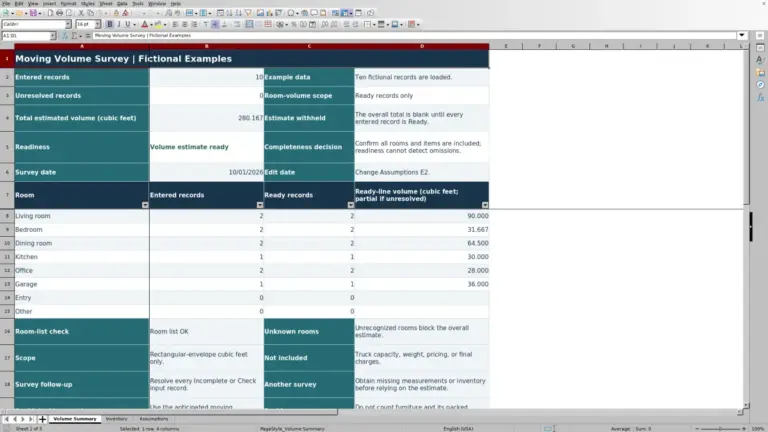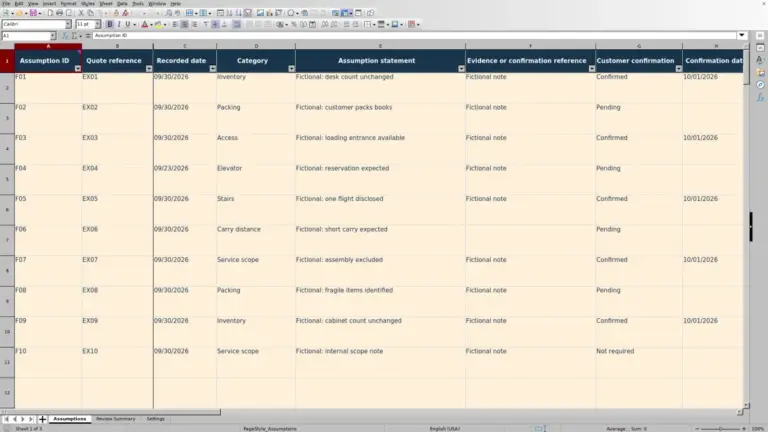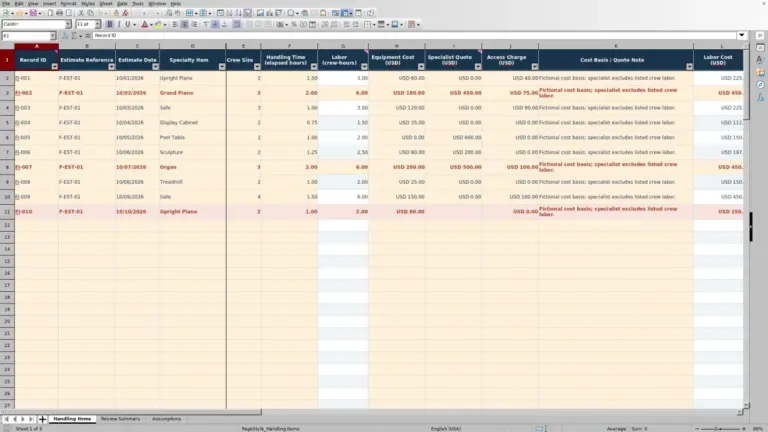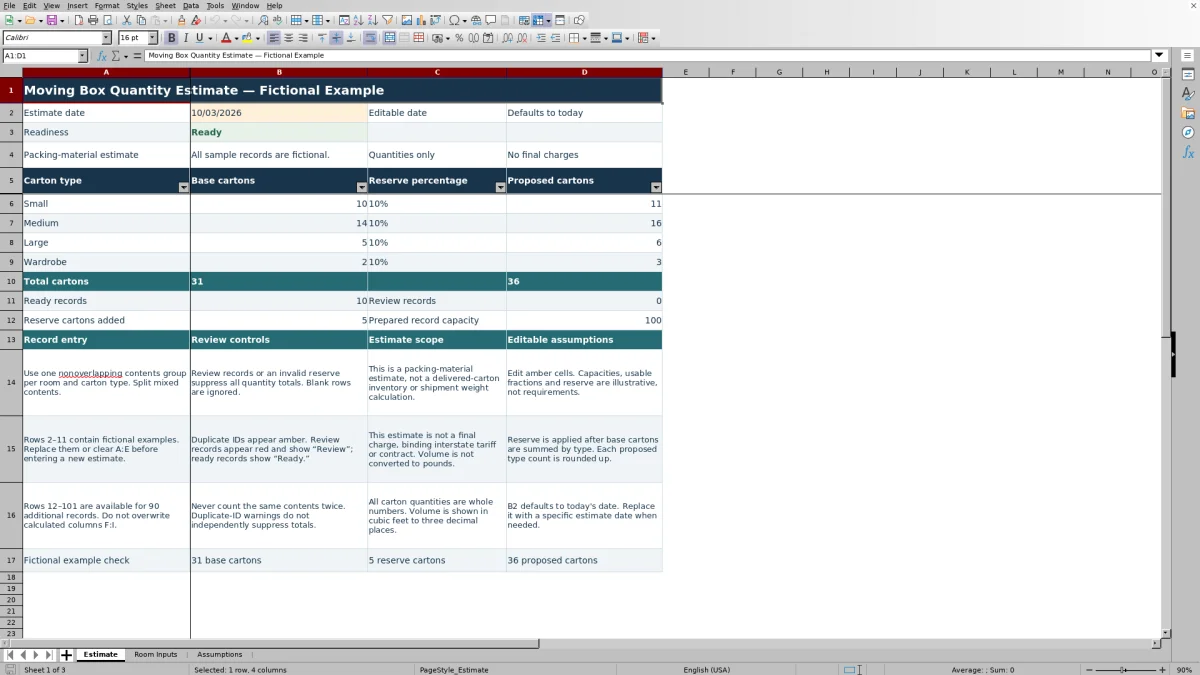
Before preparing cartons for a job, turn your room-by-room survey into a proposed packing quantity. The Mover Sheets moving box quantity calculator is an Excel workbook that uses estimated contents volume, selected carton types and editable capacity assumptions.
Review the base counts, reserve allowance and proposed cartons before handing the estimate to your packing supervisor. This is a packing-material estimate, not a record of cartons delivered or used. The included sample records are fictional.
Where this workbook helps
- Keep room and contents details behind each carton estimate so you can revisit the survey assumptions.
- Adjust usable carton capacity to reflect your planned packing approach rather than treating nominal volume as fully usable.
- Resolve incomplete or invalid records before relying on the quantity totals.
- Give the packing supervisor proposed quantities by carton type, with the reserve allowance visible.
What is in the file
How to get started
1. Start with a clean job copy
Save a separate workbook for the job. In Room Inputs, replace the fictional records in rows 2–11 or clear their entries in columns A:E. Leave calculated columns F:I intact. Rows 2–101 support up to 100 records.
2. Set the packing assumptions
On Assumptions, review Nominal capacity (cubic feet), Usable-capacity fraction and Reserve percentage. Edit the amber input cells. Keep the four carton labels unchanged: Small, Medium, Large and Wardrobe. The starting values are illustrative, not industry requirements.
3. Enter the surveyed contents
On Room Inputs, complete Record ID, Room, Contents group, Carton type and Estimated contents volume (cubic feet). Use one nonoverlapping contents group per room and carton type. Select a carton type from the dropdown and enter a positive volume.
4. Check alerts and release the estimate
Resolve any Review entries in Row status and investigate duplicate-ID warnings. On Estimate, check Readiness before using Proposed cartons. Confirm the Estimate date; it defaults to today's date, so replace it with a fixed date in MM/DD/YYYY format when preserving an issued estimate.
Define contents groups without counting items twice
Build each record around contents you can distinguish during a survey or packing handoff. A room can have several records when its contents need different carton types. For example, books and light decorative items should be separate groups if you plan to pack them in different cartons.
Count each contents group once. Do not enter a whole-room volume and then add the same room's individual groups beneath it. The workbook sums the records you supply; it does not recognize overlapping descriptions or decide which entry should replace another.
Use a unique Record ID to make follow-up easier. An amber duplicate-ID warning is a prompt to inspect both the identifiers and the contents. Changing an ID removes the identifier conflict, but it does not correct duplicated volume. Duplicate-ID warnings alone do not suppress the estimate totals.
Keep record boundaries consistent. Because each record rounds up separately, splitting one group into many small entries can increase its combined base-carton count. Split for a real packing distinction, not simply to create more lines.
Choose capacity assumptions that fit the packing plan
The calculation uses nominal carton capacity multiplied by the usable-capacity fraction. That product is the contents volume you assume one carton can accommodate after allowing for packing gaps and protective material. Dividing a group's estimated volume by that usable capacity gives the starting carton requirement, which is rounded up.
On Assumptions, enter positive nominal capacities in cubic feet. Usable-capacity fractions must be greater than zero and no more than one. A lower usable fraction means less contents volume per carton and therefore can increase the proposed quantity. These settings apply by carton type across the workbook, not separately to each room.
Usable capacity and reserve serve different purposes. The fraction adjusts how much fits inside each carton. Reserve adds cartons after base quantities have been summed by type. Check both assumptions rather than using a large reserve to conceal an uncertain survey.
Volume does not establish safe packing weight, physical fit or shipment weight. A bulky or dense contents group still needs a packing decision outside the calculation. The workbook does not convert cubic feet to pounds.
Fictional example: from contents volume to proposed cartons
This isolated fictional example uses two Medium-carton records and no other contents. In Room Inputs, enter unique IDs for Fictional Office A, Papers, with 8.000 cubic feet, and Fictional Office B, Papers, with 4.000 cubic feet. Select Medium for both records.
For this example, set the Medium nominal capacity on Assumptions to 3.000 cubic feet, its usable-capacity fraction to 75%, and Reserve percentage to 20%. The usable capacity is 3.000 × 0.75 = 2.250 cubic feet per carton.
- Office A: 8.000 ÷ 2.250 = approximately 3.56, rounded up to 4 base cartons.
- Office B: 4.000 ÷ 2.250 = approximately 1.78, rounded up to 2 base cartons.
- Combined Medium base quantity: 6 cartons.
- After reserve: 6 × 1.20 = 7.2, rounded up to 8 proposed Medium cartons.
The result is 8 proposed cartons, including 2 reserve cartons. The extra whole-carton rounding means the added quantity is not exactly 20% of the base count. Before handing off that quantity, confirm that the papers suit the selected carton and that the volume estimates do not overlap.
The workbook applies reserve and final rounding separately to each carton type, then totals the proposed counts. Applying reserve once to a combined all-type total can produce a different answer.
Troubleshooting: common input errors and solutions
A blank total is not a zero-carton estimate. Estimate suppresses quantity totals when a record needs review or the reserve is invalid. Start with Readiness, then correct the affected inputs rather than typing over the calculated totals.
- No inputs: All input cells in Room Inputs A2:E101 are empty. Enter complete contents records before expecting quantities.
- Incomplete record: A missing Record ID, Room, Contents group or Carton type causes Row status to show Review. Complete the record, or clear all its input cells in A:E if it should not be included.
- Invalid volume: Text, zero or a negative value in Estimated contents volume (cubic feet) causes review. Enter a numeric volume greater than zero for contents included in the estimate.
- Blank capacity fields: An unrecognized Carton type cannot retrieve its assumptions. Restore any renamed assumption labels and select Small, Medium, Large or Wardrobe from the dropdown.
- Invalid capacity assumptions: Check the selected type on Assumptions. Its nominal capacity must be numeric and positive, and its usable-capacity fraction must be numeric, greater than zero and no more than one.
- Review reserve: Correct Assumptions B8, the Reserve percentage input. It must be numeric and between 0% and 100%, inclusive. Enter a percentage such as 12%, not the whole number 12.
- Unexpectedly high quantities: Remove retained fictional sample records, correct overlapping contents groups and review unnecessary record splitting. Also check whether the usable-capacity fraction is lower than intended.
After correcting the inputs, confirm that Readiness shows Ready. A carton type with no matching contents can then correctly show zero. Ready means the formula checks have passed; it does not confirm that the survey is complete or that the carton choice is appropriate.
Hand off proposed quantities without treating them as actual usage
Use Proposed cartons on Estimate as the quantity proposal for each carton type. Base cartons shows the requirement before reserve, while Reserve cartons added shows the total increase caused by the reserve calculation and whole-carton rounding.
Before the packing handoff, confirm which contents remain uncertain and explain the assumptions behind those groups. A quantity can be mathematically valid while still depending on a rough volume estimate or an unresolved packing choice.
Record actual delivery and use separately. This workbook is not a delivered-carton inventory and does not reconcile cartons issued, used or returned. Do not overwrite estimated contents volumes merely to make the proposal match actual carton usage.
The summary provides quantities only, not material prices or final charges. If you use these quantities in a separate customer estimate, apply and check pricing there. This file does not establish a lawful interstate tariff, binding price or contract.
Revise a survey while preserving the earlier estimate
If the customer adds contents or the packing plan changes, save a dated copy before editing the working file. Then update the affected records and review the revised quantities by type. Changing a capacity assumption can affect every record using that carton type, not just the room that prompted the change.
The Estimate date uses TODAY() by default, so it can change as the workbook recalculates on a later date. Replace it with the intended fixed date when retaining a version for reference. Do not rely on the workbook to maintain a revision history or notify anyone of changes.
Keep entries inside Room Inputs rows 2–101. The supplied calculations and summary references cover those 100 prepared records. Appending records below that range does not bring them into the existing estimate formulas. For a larger survey, use a deliberately extended and checked workbook or another workflow rather than assuming extra rows are included.
If calculated columns F:I were overwritten, recover them from an unchanged copy before trusting the revised totals.
Compare this workbook with a paper carton estimate
Choose the method based on how often quantities and packing assumptions change. A paper sheet can support a straightforward one-time survey; this workbook provides a repeatable calculation structure when you need to revise volumes or capacity assumptions.
| Method | Quantity calculation | Input checks | Revisions and handoff | Actual carton records |
|---|---|---|---|---|
| Mover Sheets Excel workbook | Calculates rounded base quantities from volume and usable capacity, then applies reserve by type. | Flags review records and duplicate IDs; suppresses totals for review records or an invalid reserve. | Recalculates after edits and summarizes proposed quantities by type. Earlier versions must be saved separately. | Does not record cartons delivered, used or returned. |
| Paper carton estimate | The estimator calculates and writes the quantities using a chosen method. | The estimator checks completeness, duplicate entries and arithmetic manually. | Changes require revised calculations and a clearly identified replacement or amended sheet. | Actual quantities require a separate log or a deliberately designed additional section. |
Use the workbook when a structured volume-based estimate and consistent rounding suit the job. Use a paper workflow when that is practical for the survey, provided someone checks the calculation and clearly separates proposed quantities from actual usage. Neither approach removes the need to judge what can safely and practically go into a carton.
Frequently asked questions
Can I open the workbook in LibreOffice?
The workbook notes specify that Excel or LibreOffice recalculates its formulas on opening. Open it in one of those applications and check Readiness and the resulting quantities. A preview that does not calculate formulas may not show usable results because the supplied file does not include calculated formula caches.
Can I add a dish-pack or specialty carton type?
Not through the prepared four-type setup. The dropdown and lookups use Small, Medium, Large and Wardrobe, and those labels must stay unchanged and unique. Adding another carton type would require coordinated changes to the inputs, assumptions and summary formulas. Estimate unsupported specialty cartons separately unless the workbook has been deliberately modified and checked.
Does it estimate tape, packing paper or protective wrap?
No. The calculated outputs are carton quantities. The usable-capacity fraction allows for space taken by gaps and protective material, but it does not calculate how much tape, paper or wrap to prepare. Plan those supplies separately.
Can I use it for both household and office surveys?
You can enter household or office room names and contents groups in the same prepared fields. In either case, you must supply the estimated contents volume and choose a suitable supported carton type. The workbook does not infer carton quantities from a room name, item count or office size.
Editorial coverage

Nolan FairchildEstimating & job planning
Editorial scope and contact →
Mira WexfordPacking & job records
Editorial scope and contact →